
After getting a new iPhone, many users worry about how to transfer their data from their old iPhone. Fortunately, Apple’s built-in migration tools can move data directly between compatible devices. For most users, the easiest way to transfer data from one iPhone to another is Quick Start. Other options include data transfer from an iCloud backup or using a wired connection.
The best method to transfer data from iPhone to iPhone depends on the size and amount of data, the functionality of the previous iPhone like its battery and LCD working or not, and internet stability. If the user is using cable transfer, their cables must be compatible, with enough iCloud storage.
What Is the Easiest Way to Transfer iPhone Data?
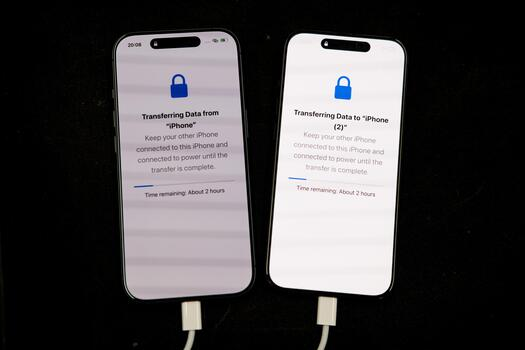
For most users, Quick Start is the easiest and wireless way to transfer data from iPhone to iPhone. The method is quite simple. Just place the old and new iPhones near each other, enable Wi-Fi and Bluetooth, follow the setup instructions, and choose the direct transfer option. Apple recommends keeping both devices near each other and connected to power until migration finishes.
| Method | Best For | Internet Needed | Ease |
| Quick Start | Most users | Wi-Fi | ★★★★★ |
| iCloud | Old phone unavailable | Yes | ★★★★ |
| Wired transfer | Large data libraries | Wi-Fi during setup | ★★★★ |
How to Transfer Data From iPhone to iPhone Using Quick Start
Quick Start is Apple’s primary device-to-device migration method. Prepare both phones before starting the data transfer process.
Before You Start
- Update both iPhones where practical.
- Have your Apple Account password ready.
- Connect the old iPhone to Wi-Fi.
- Make sure Bluetooth is turned on.
- Charge both devices or connect them to power.
- Keep the phones close together.
- Check that the new iPhone has enough available storage.
- Ideally, create a backup of your old iPhone before beginning.
Note: Apple’s current setup guidance recommends having a backup and your Apple Account password available before setting up a new iPhone.
Step-by-Step Quick Start
- Turn on the new iPhone and place it near your old iPhone.
- Make sure Wi-Fi is enabled on the old device, and Bluetooth is turned on.
- Follow the Quick Start prompt that appears on the old iPhone.
- Authenticate using your old iPhone’s passcode when prompted.
- Scan the animation displayed on the new iPhone using the old iPhone.
- Set up Face ID or Touch ID on the new device.
- When asked how you want to transfer your data, choose the direct transfer option.
- Keep both iPhones close together and connected to power.
- Wait until the migration finishes before separating or restarting the devices.
Pro Tip: If the Quick Start prompt disappears, Apple recommends restarting both devices and trying again.
Direct device-to-device transfer requires you to wait until the process finishes on both phones. However, iCloud-based downloads can continue quietly in the background while you start using your new iPhone right away.
How Long Does iPhone Transfer Take?
There is no universal answer to how long an iPhone transfer takes. A small migration may finish relatively quickly, while a device containing hundreds of gigabytes of photos, videos, apps, and other data can take considerably longer.
Apple says transfer times can vary based on factors including the amount of data being transferred and network conditions.
As a general way to think about the migration:
Approximate Transfer Time Examples
| 10–20 GB | Relatively quick |
| 50 GB | Moderate |
| 100 GB+ | Can take considerably longer |
| Several hundred GB | Plan for an extended migration |
As a rough real-world benchmark, a solid 5GHz Wi-Fi connection can move around 1GB of data per minute, and using a cable instead of Wi-Fi can roughly double that throughput. But in real-time users’ experience may vary.
How to Transfer iPhone Data With iCloud
iCloud is useful when you want to restore your new iPhone from a backup rather than transfer directly from the old device. It can also be useful when your previous iPhone is not physically available.
To create a backup on your old iPhone:
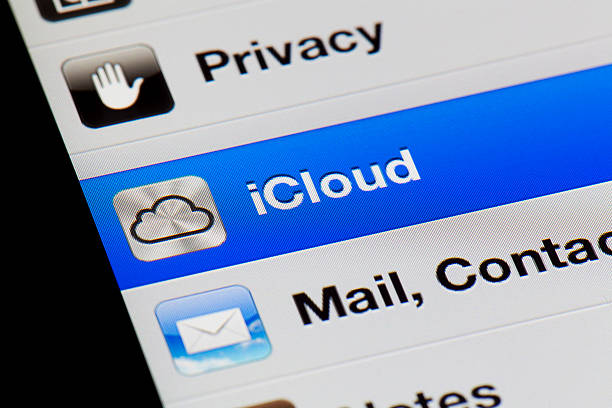
- Open Settings.
- Tap your name.
- Select iCloud.
- Tap iCloud Backup.
- Select Back Up Now.
- Stay connected to Wi-Fi until the backup finishes.
Apple also notes that people setting up a new iPhone may be eligible for temporary iCloud storage in certain circumstances.
On the new iPhone, follow setup until you reach the option to restore from an iCloud backup. Sign in with your Apple Account, select the correct backup by checking its date and size, and allow the restoration process to complete. After setup, content such as apps and photos stored in iCloud can continue downloading while the phone remains connected to Wi-Fi and power.
Conclusion
For most users, Quick Start is the simplest way to transfer data from one iPhone to another. It provides a straightforward device-to-device migration process without requiring manual effort.
Whichever method you choose, the most important final step is simple: do not erase your old iPhone data until you have thoroughly checked the new one. Verify your photos, contacts, messages, apps, accounts, and other important information first. That extra check can prevent an otherwise avoidable data-loss problem.
If a damaged display is preventing you from accessing your old iPhone, a reliable replacement screen may be the first step toward getting your device working again. SQLCD supplies high-quality screens and batteries with factory-direct support for repair shops, wholesalers, and brands.Contact us now to discuss your LCD requirements and get a quote.