
Is your repair shop dealing with slow Android phones or sourcing parts for wholesale?
Understanding how to fix a slow Android phone enables technicians to determine if the problem is related to storage, applications, software, battery condition, or hardware.
Performance problems can impact millions of devices as Android smartphones age, get crowded with data, or encounter hardware problems, with over 1 billion Android smartphones in use globally. Before replacing any component, it is important for repair shops and refurbishment companies to know the real reason for the slowdown.
This detailed guide will cover the common causes of slow performance on Android phones and offer practical tips to optimize their performance. You will also discover when to think about battery replacement, hardware inspection, professional repair, and replacement. Let’s get started!
Why is my Android phone running slow?
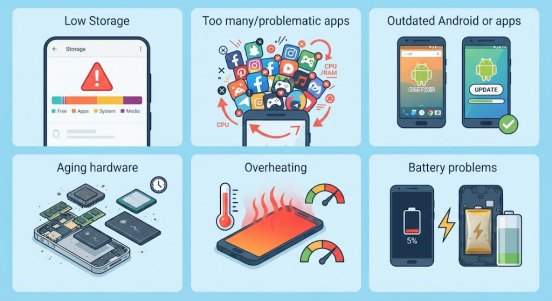
There are a number of common problems that are the reason why is my Android phone running slow for most users.
Low storage: When there is very little storage available, the performance of the overall Android system may suffer significantly. Google says that phones tend to lag when there is less than 10% free storage.
Too many or problematic apps: Background activity, poorly optimized applications, or a newly installed application can cause actual performance issues. A single errant app can be busy all the time, using up memory and processing power.
Outdated Android or apps: Software updates often come with bug fixes, compatibility improvements, and critical security patches. If you don’t update, you won’t benefit from these performance and stability improvements over time.
Aging hardware: Older CPUs, small memory, worn-out batteries, and aging storage chips can have trouble with newer software. Older hardware can’t keep up with the demands of newer apps.
Overheating: Thermal management slows down the system when the phone is too hot. This is a protective measure, but it can cause unwanted and annoying lag.
Battery problems: Over time, batteries can become degraded or faulty, leading to performance fluctuations and sudden shutdowns. A battery replacement is not the answer for all slow phones; diagnose first.
How to fix a slow Android phone?
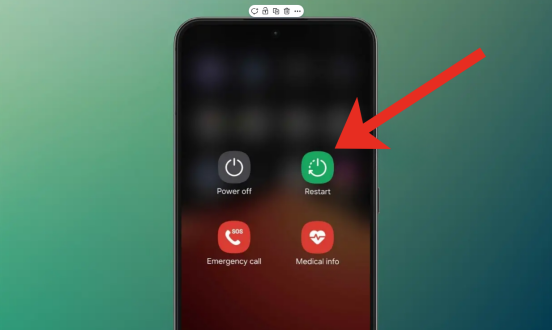
1. Restart your Android phone
The easiest first step is restarting. It can resolve temporary software issues and reset unresponsive processes. Once restarted, try out the applications that were laggy before. If performance improves for a while but gets worse again, proceed with the next checks.
2. Check how much storage is available
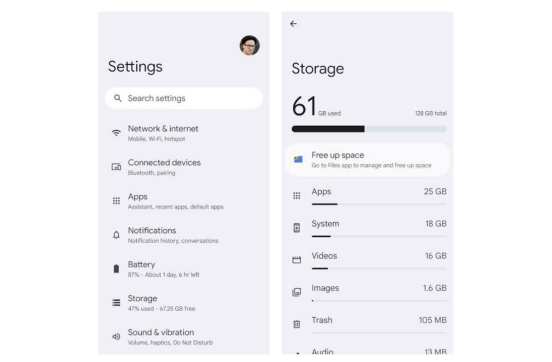
Open the Settings>Storage menu (the menu may differ from one manufacturer to another).
If you have almost no more storage space, delete unnecessary:
- Videos and large photos
- Downloaded files
- Unused applications
- Duplicate files
- Offline media
- Unnecessary application data
It’s also possible to transfer backed-up photos and files to a supported cloud storage service or a computer.
3. Update Android
Go to Settings > System > Software Update on your Android device. This may vary slightly depending on the manufacturer of your phone. Apply available updates after confirming sufficient storage space and battery power on the phone.
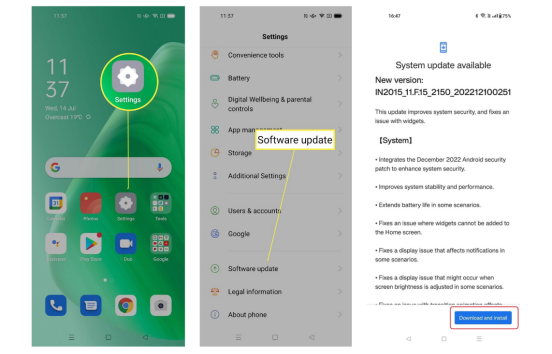
4. Update your apps
Go to the Google Play Store, click on your profile and then click on My apps & games. Install available updates. A legacy or troublesome application may cause crashes, delays and high resource usage. Regular updates can thus help in cases where a specific application is causing slowdowns or crashing.
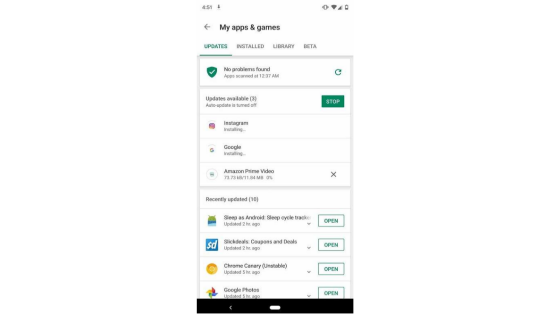
5. Find apps that are making your phone slow
Identify applications that:
- were installed just before the slowdown.
- Frequently crash
- Drain battery power
- Creates a lot of background noise
- Cause the phone to become hot
Update the application that seems fishy first. If the problem persists, remove it and retest the phone.
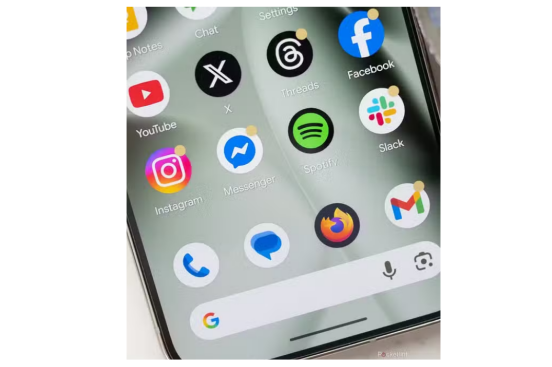
6. Try safe mode
Safe Mode temporarily deactivates downloaded applications. This is handy for helping to isolate third-party software issues. If your phone is noticeably faster in Safe Mode, it means that a downloaded application is causing the problem. Reboot and uninstall the new software until you find the problem.
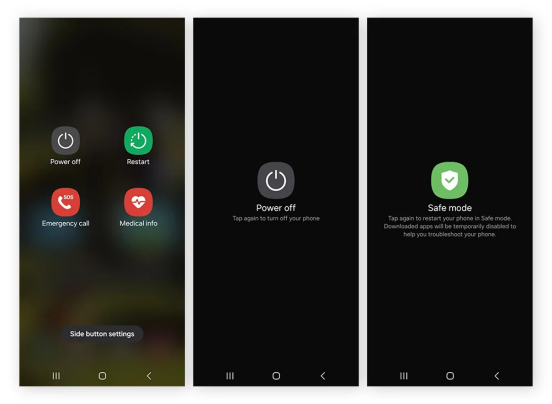
7. Clear app cache carefully
Clearing cache will delete temporary data, while clearing storage or data will delete any information that the app has stored. Google makes a clear distinction between these two actions. So, use Clear cache as needed and only clear application storage if you know what information you are losing.
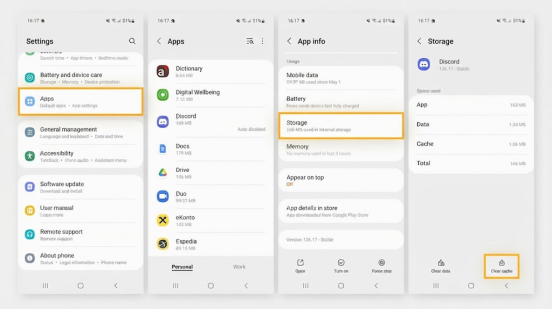
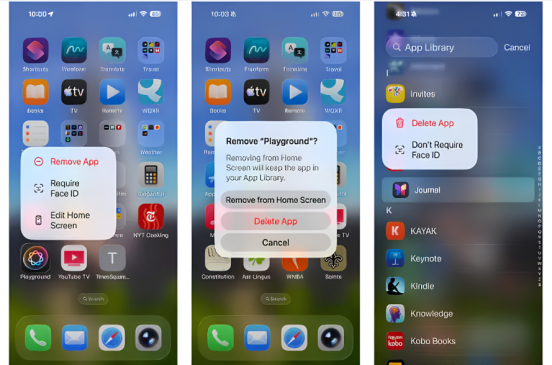
8. Remove unused appsUnused applications take up storage and can have background activity. Remove unwanted software, especially software that you downloaded on a temporary basis. For supported Android versions, you can also archive apps to free up space without losing the app’s icon or your personal information.
9. Check whether the phone is overheating
If a phone is slow and is running hot, it’s time for some investigating. Think about whether the issue occurs during:
- Gaming
- Video recording
- Charging
- Poor cellular reception
- Heavy multitasking
- Extended navigation
- Demanding background activity
In case of phone overheating during light use, professional diagnostics may be appropriate.

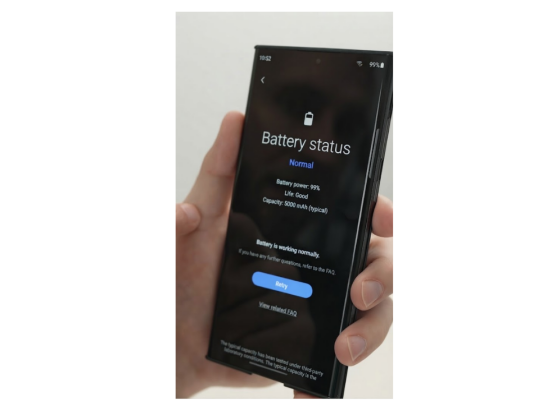
10. Check battery health and battery condition
If the battery has unexpected shutdowns, abnormal heat, rapid discharge or charging issues, then battery condition should be addressed along with slowness. Don’t expect that a battery replacement will automatically make every Android phone faster. A new battery will not solve the problem if the issue is related to storage, software, lack of hardware resources, or motherboard damage.
How to improve Android performance long term?
It is better to know how to improve Android performance when you maintain the device consistently. Maintain reasonable free storage, update Android and apps, uninstall unused apps, and troubleshoot overheating rather than ignore it.
It is also advisable to steer clear of suspicious applications from unknown sources. Normally, you don’t need to shut down all background programs all the time. Google’s guidance states that generally, you should not close apps unless one fails to respond.
This renders aggressive “RAM cleaner” practices less beneficial than knowing the specific application or system issue.
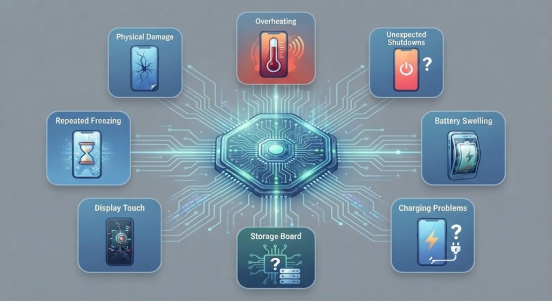
Is your slow Android phone a hardware problem?
Sometimes, software troubleshooting is not sufficient. If your phone is still slow after you’ve done the basic software troubleshooting and a factory reset, you may want to try hardware diagnostics. Warning signs include:
- Overheating that lasts for a long time or is very intense
- Unexpected shutdowns
- Battery swelling
- Charging problems
- Physical damage
- Repeated freezing
- Display or touch problems
- Suspected storage or motherboard failure
This is the point where a repair tech can tell the difference between software and a component issues.
Can a battery replacement make an Android phone faster?
Sometimes, but not in all devices and circumstances.
If the phone battery is too far gone or has been damaged, a battery replacement may be necessary to prevent instability, excessive heat or shutdowns. It will not, however, cure low storage, bad applications, outdated software, low resources or motherboard damage.
This differentiation is important for repair shops. Correct diagnosis avoids unnecessary replacement of parts and will allow technicians to advise on the right solution.

When should you factory reset an Android phone?
Use a factory reset only as a last resort for troubleshooting.
Before resetting, back up important photos, contacts, messages, files, and other data. Make sure you have the Google Account information for the phone.
Google states that a factory reset will remove data from the device, but backed-up data in your Google Account can be recovered.
If the phone is still slow after a clean factory reset, hardware limitations or component failure become more of a possibility.

When should you repair or replace a slow Android phone?
| Situation | Recommended Action |
| Low storage | Free storage |
| One problematic app | Update, remove, or troubleshoot it |
| Outdated software | Install available updates |
| Phone overheating | Diagnose the heat source |
| Severe battery degradation | Inspect the battery |
| Physical damage | Seek professional diagnosis |
| Very old hardware | Compare repair with replacement |
| Still slow after reset | Perform hardware diagnostics |
How do repair shops diagnose a slow Android phone?
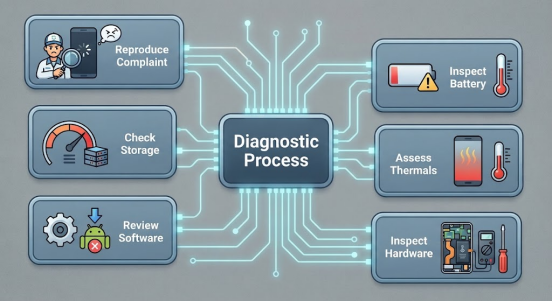
The first step in the professional diagnostic process is to duplicate the customer’s complaint. Check if the slowdown is occurring across all applications or specific apps, and look at boot time, touch responsiveness, internet performance, camera performance, games, and charging performance.
- Check storage: See if lack of storage space is part of the issue.
- Review software: Search for the Android version, security updates, new app installations, and system crashes.
- Inspect the battery: Check battery status, temperature, charging status and abnormal shutdowns.
- Assess thermal behavior: Identify if there is a correlation between performance decline and heat.
- Inspect hardware: If software tests fail, check the battery, charging assembly, display assembly, connectors, internal flex cables and motherboard.
This workflow provides a more structured approach to diagnosing slow devices before repair shops, refurbishment companies, wholesalers and technicians can recommend repair.
Quick checklist: How to speed up Android phone
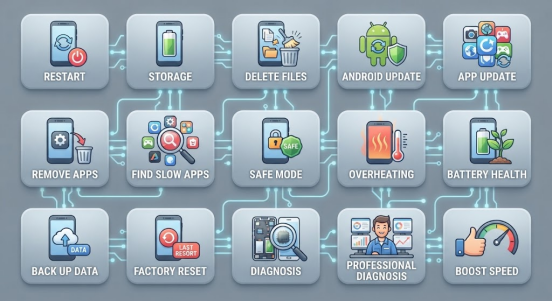
If you want to boost your Android phone’s performance, here is a quick checklist to follow:
- Restart the phone
- Check available storage
- Delete unnecessary files
- Update Android
- Update apps
- Remove unused apps
- Investigate problematic applications
- Try Safe Mode
- Check for overheating
- Check battery condition
- Back up important data
- Only consider a factory reset as a last resort after other troubleshooting measures have been exhausted
- Seek professional diagnosis if hardware problems are suspected
Conclusion
Now you know the answer to “How to fix a slow Android phone?” In most cases, there’s a fixable reason for your slow Android phone. Perform basic troubleshooting such as restarting, clearing storage, and updating software. If those measures are unsuccessful, then battery health, overheating or aging hardware components need a closer look. Professional repair shops are able to identify issues with hardware and recommend solutions. In the context of repair volume, SQLCD’s replacement parts and repair solutions offer businesses an efficient and reliable approach to reviving slow Android phones.